
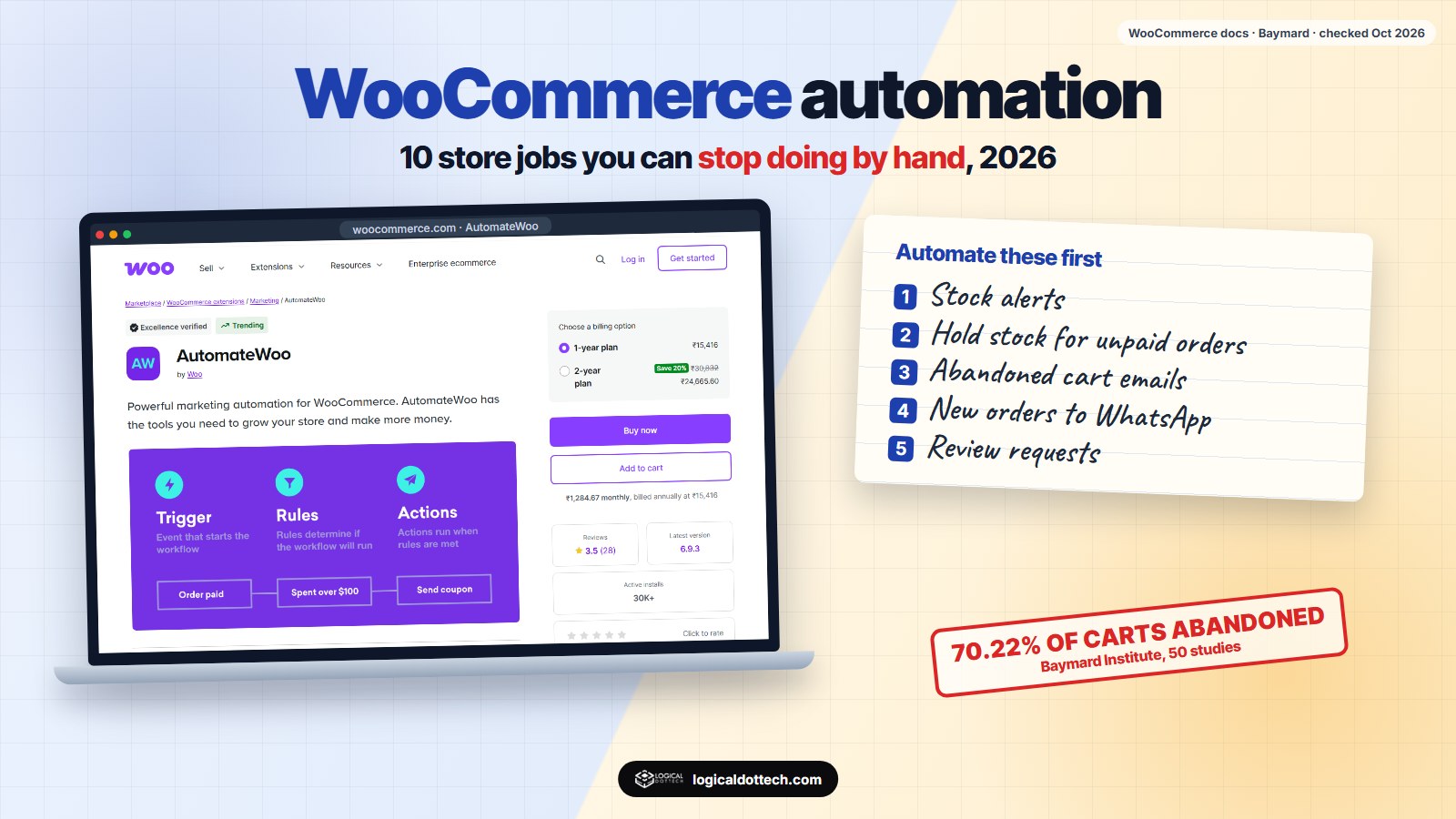
Short answer: WooCommerce automation means letting the store do repeat jobs on its own: stock alerts, order updates, abandoned cart reminders, review requests, invoices and sending orders to other apps. Several of these are already built into WooCommerce. The rest need one plugin or a webhook to a tool such as n8n or Zapier. Start with the jobs that only send information, and keep refunds and pricing with a person.
We build and look after WooCommerce stores, and the same ten jobs eat time on almost every one of them. This guide lists them, says which ones WooCommerce already does, and what to use for the rest. Facts are from WooCommerce’s own documentation and were checked on 19 October 2026.
Which WooCommerce tasks can you automate?
| Task | Built into WooCommerce? | What to use |
|---|---|---|
| Order confirmation and status emails | Yes | WooCommerce > Settings > Emails |
| Low stock and out of stock alerts | Yes | Settings > Products > Inventory |
| Releasing stock from unpaid orders | Yes | “Hold stock” in the same Inventory settings |
| Sale prices that start and end on a date | Yes | The “Schedule” link next to the sale price on each product |
| Sending orders to other apps | Yes | Webhooks, plus n8n, Make or Zapier |
| Abandoned cart reminders | No | AutomateWoo or an abandoned cart plugin |
| Review requests after delivery | No | AutomateWoo or a review plugin |
| Win-back emails to past buyers | No | AutomateWoo or your email marketing tool |
| Invoices (GST invoices in India) | No | An invoice plugin |
| Product descriptions and image alt text | No | An AI tool, with a person checking every result |
Why automate a WooCommerce store?
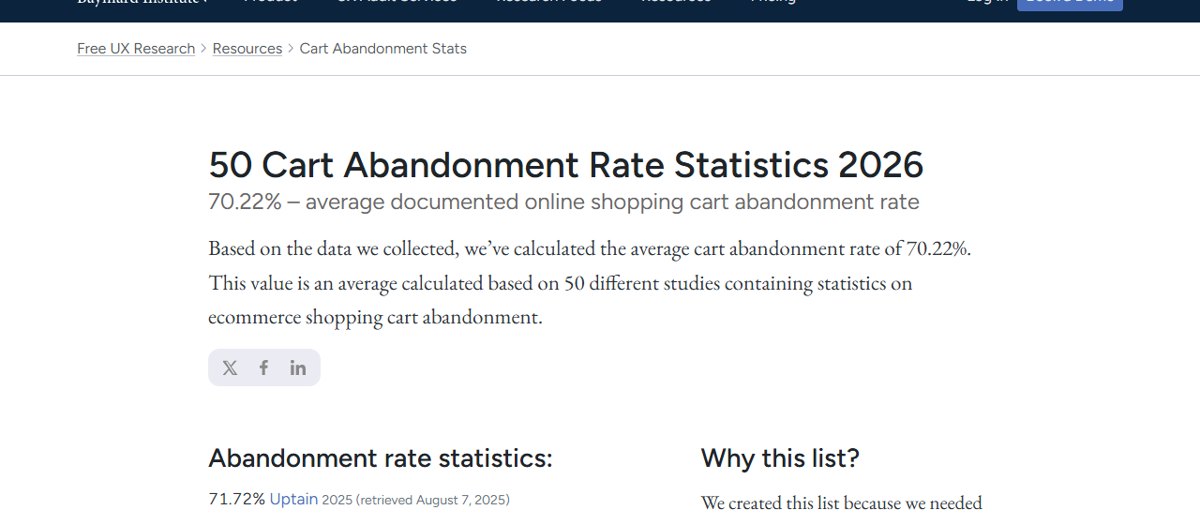
Because most of the money a store loses, it loses quietly. Baymard Institute puts the average online cart abandonment rate at 70.22%, based on 50 studies (last updated 22 September 2025). Of the shoppers who left for a reason other than “just browsing”, 40% left because of extra costs such as shipping, tax and fees, 20% because delivery was too slow, 19% because they did not trust the site with their card, and 18% because the site made them create an account.
No automation fixes a checkout that surprises people with a shipping charge. Fix those reasons first, then let reminders catch the people who were simply interrupted.
What does WooCommerce already automate?
Open these settings before you buy anything:
- Stock alerts. In WooCommerce > Settings > Products > Inventory, tick low stock and out of stock notifications, set a low stock threshold, and add every email address that should get the alert.
- Hold stock. In the same place, “Hold stock” reserves items for unpaid orders for the minutes you set. When the time runs out, the pending order is cancelled and the stock goes back on sale. It only applies to orders in “Pending payment”, not “On hold”.
- Order emails. WooCommerce > Settings > Emails lists every automatic email. Turn on the ones you need, and add your logo and a short line of real help to each.
- Scheduled sales. On any product, click “Schedule” next to the sale price and set the start and end dates. Good for festival sales that start at midnight.
- Know which orders need work. WooCommerce’s order status guide says all orders need processing except those where every product is both virtual and downloadable. For digital products, check that your payment method completes them so customers get their files straight away.
How do you set up abandoned cart and review emails?
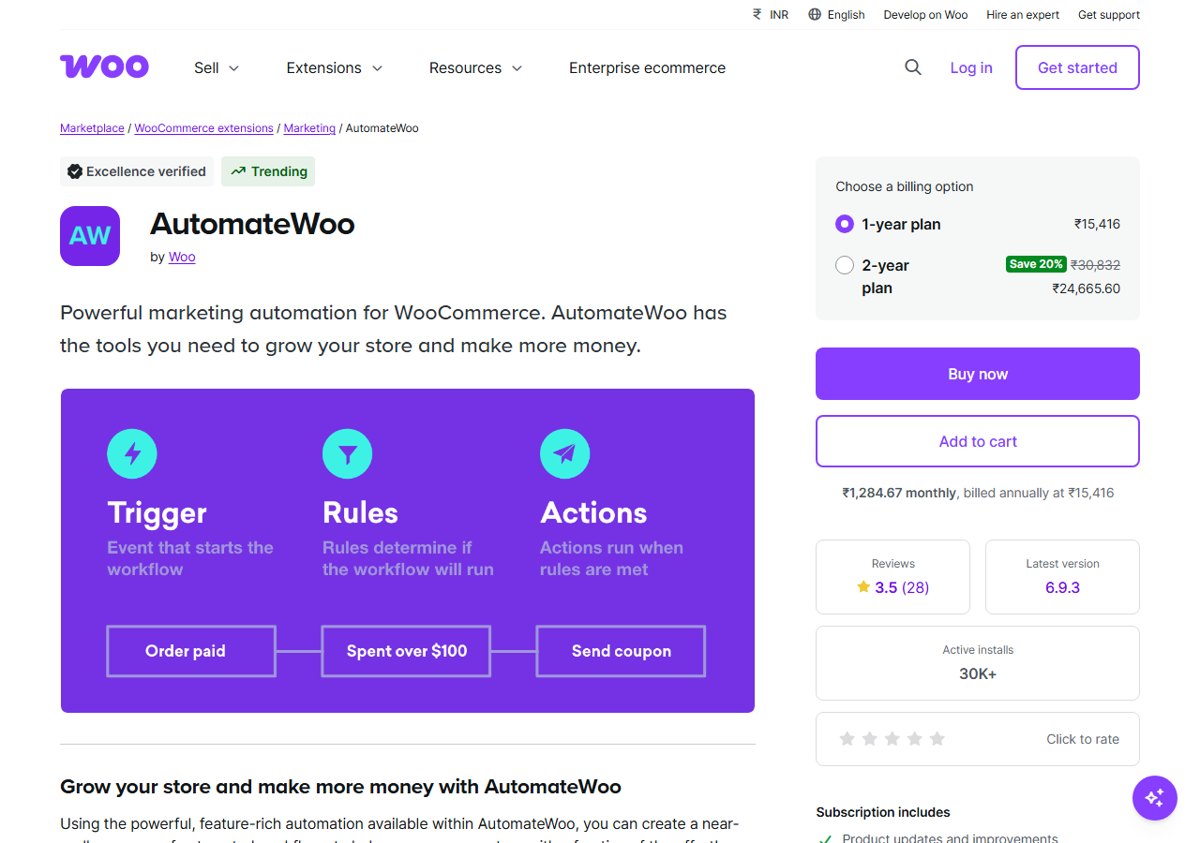
WooCommerce does not send these on its own. The plugin made by Woo itself is AutomateWoo. On 19 October 2026 its page listed it at ₹15,416 a year for one site, with more than 30,000 active installs.
Whichever plugin you use, these three emails do most of the work:
| When to send | What to put in it | |
|---|---|---|
| Abandoned cart | A few hours after the cart is left, then once more a day later | The product, its photo, a link straight back to the cart, and an answer to the usual worry (delivery time, returns) |
| Review request | A few days after delivery, not after payment | One link to the review form and a thank you. No discount for a good review |
| Win-back | When a repeat buyer has not ordered for longer than usual | What is new, and a reason to come back that fits your margins |
Two limits. Send reminders only to people who gave you their email and agreed to hear from you, as the privacy law where your customers live requires. And send two or three, not ten.
How do you connect WooCommerce to WhatsApp, Sheets or accounting?
Use webhooks. WooCommerce describes a webhook as an event notification sent to a URL of your choice. You will find them in WooCommerce > Settings > Advanced > Webhooks, with topics for orders, products, customers and coupons.
- Pick a workflow tool. n8n (which you can host yourself), Make or Zapier all accept WooCommerce webhooks.
- Create the webhook. Choose a topic such as “Order created”, paste the URL your workflow tool gives you, and set a secret so the tool can check the message came from your store.
- Build the action. Post the order to a WhatsApp group for the packing team, add a row to Google Sheets, or create a sale in your accounting software.
- Watch for failures. WooCommerce turns a webhook off after more than five delivery failures in a row. Check the webhook list after any change to the workflow.
What runs all this in the background?
WooCommerce uses Action Scheduler, a job queue for WordPress that, by its own description, processes millions of subscription payments and WooCommerce webhooks every month. You can see it in WooCommerce > Status > Scheduled Actions.
One thing trips up small stores: WordPress starts scheduled jobs when someone visits the site. On a quiet night, reminders and webhooks can run late. Ask your host to set a real server cron job, then look at Scheduled Actions once a week for anything marked past due or failed.
Where does AI help, and where does it not?
Good jobs for AI
- First drafts of product descriptions from your real specifications.
- Alt text for product images.
- Sorting customer messages into “where is my order”, “return” and “other”.
- Weekly summaries: best sellers, slow stock, repeat buyers.
Keep with a person
- Refunds and cancellations.
- Price changes and discounts.
- Replies to complaints.
- Final check of every AI description before it goes live, since a wrong size or material means a return.
What should a small store automate first?
- Week 1: stock alerts, hold stock, and clean order emails. Free and already in WooCommerce.
- Week 2: abandoned cart reminders, once delivery costs are shown early in checkout.
- Week 3: a webhook that posts new orders to the team’s WhatsApp group or a Google Sheet.
- Week 4: review requests after delivery, and invoices if you need them for GST.
- After that: win-back emails and AI help on the catalogue.
Common WooCommerce automation mistakes
| Mistake | What to do instead |
|---|---|
| Installing five plugins that each send their own emails | One email tool, one set of templates |
| Review requests sent the moment someone pays | Send them after delivery |
| Automating before fixing surprise shipping costs | Show delivery cost early; Baymard found extra costs are the top reason people leave |
| Never checking Scheduled Actions | Look once a week for past-due and failed jobs |
| Publishing AI descriptions unchecked | A person reads every one before it goes live |
If you would rather have this set up for you, our WooCommerce automation service covers the settings, the emails, webhooks to your other tools and AI help on the catalogue. If you are still choosing a platform, read our comparison of WordPress and Shopify. Or book a free 30-minute call and we will look at your store with you.
Common questions
What can you automate in WooCommerce without a plugin?
Order emails, low stock and out of stock alerts, releasing stock from unpaid orders after a set time, scheduled sale prices, and webhooks that send orders, products, customers and coupons to another app. All of these are in WooCommerce settings already.
What is the best plugin for WooCommerce email automation?
AutomateWoo is the one made by Woo itself. It covers abandoned carts, review requests, win-back emails, SMS through Twilio and personalised coupons. On 19 October 2026 it was listed at ₹15,416 a year for one site. Cheaper single-purpose plugins exist for abandoned carts alone.
How do I send WooCommerce orders to WhatsApp or Google Sheets?
Create a webhook in WooCommerce > Settings > Advanced > Webhooks for the order created event, and point it at a workflow tool such as n8n, Make or Zapier. That tool then posts the order to WhatsApp, a Google Sheet or your accounting software.
Why are my WooCommerce scheduled actions not running?
WordPress runs scheduled tasks when someone visits the site, so on a quiet store they can run late. Ask your host to set a real server cron job, then check WooCommerce > Status > Scheduled Actions for anything past due or failed.
Can AI write my WooCommerce product descriptions?
Yes, and it saves hours on a large catalogue. Give it the real specifications, then have a person check every description for wrong sizes, materials or claims before it goes live. Wrong details lead to returns.
Is WooCommerce automation safe for a small store?
Start with the parts that only send information: stock alerts, order notifications and reminders. Keep refunds, price changes and replies to complaints with a person until you trust the setup.
Sources checked on 19 October 2026: WooCommerce product and inventory settings, WooCommerce order statuses, WooCommerce webhooks, Action Scheduler, AutomateWoo on woocommerce.com (price shown for India) and Baymard Institute cart abandonment research, updated 22 September 2025. Plugin prices change, so check the current price before you buy.